Help
Notifications
How to set expiry warning windows and who is notified for platform events. Button names match the English UI.
This is for Allura staff with permission to see Notifications in administration. Saving here configures future alerts; it does not send a test email by itself.
Related: Administration panel.
Before you start
- You are signed in to VIPA.
- In the platform menu, click Settings.
- In the administration sidebar, click Notifications.
If the row is missing, your role cannot change these settings.
The screen
Title Notifications. Text: Expiry warning windows and who gets notified for each platform event. Renewal-due timing is tiered by role so reminders escalate as expiry nears.
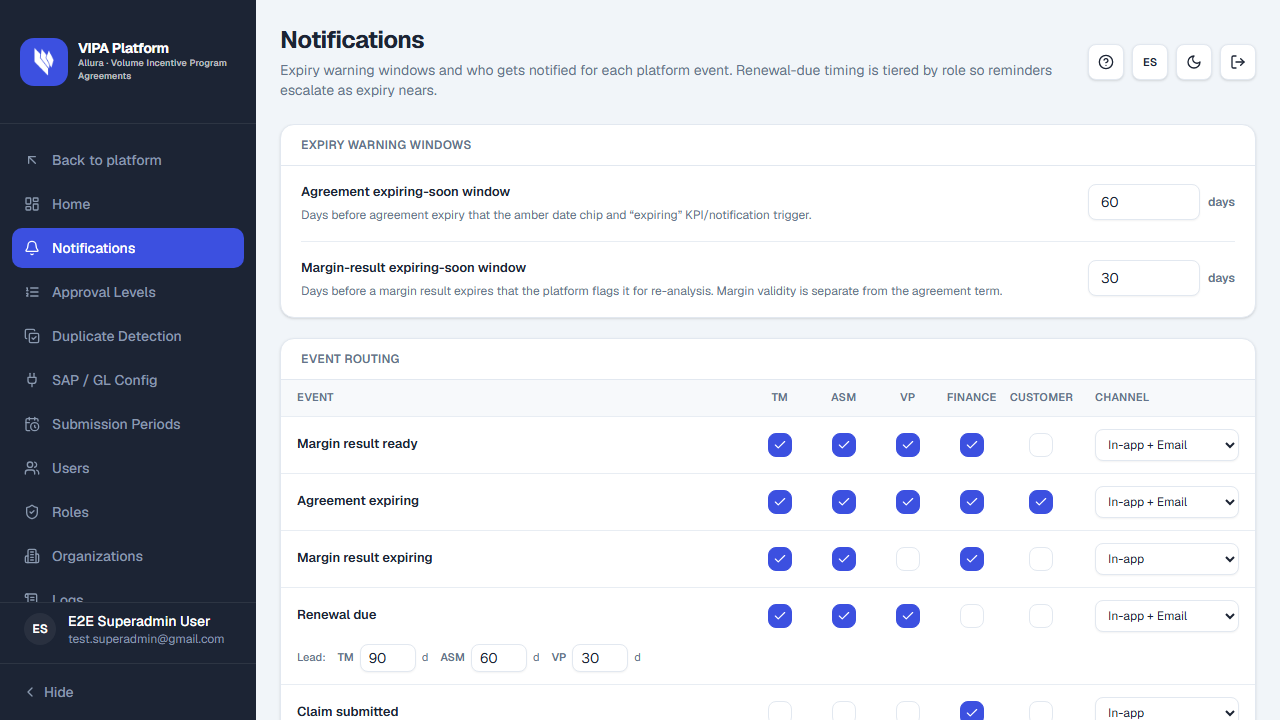
Expiry warning windows
| Field | What it does |
|---|---|
| Agreement expiring-soon window | Days before agreement expiry for the amber date chip and “expiring” KPI/notification. Unit: days. |
| Margin-result expiring-soon window | Days before a margin result expires that the platform flags it for re-analysis. Margin validity is separate from the agreement term. |
| Margin-result expiry notices | One line per notice, with the days in advance (5 and 2 by default). Click Add notice for another line or the trash icon to remove it; with no lines only the expiry is notified. Each notice must be lower than the window above. |
While a request is pending approval (result sent, below threshold or pending CEO), its margin result expires after the days set in Margin-result expiring-soon window, counted from the day Finance sends it. Notices go out according to the lines above; at expiry the request goes back to Finance review, its approvals are reset and the expiry is notified (Margin result expiring event). Requests already approved or accepted by the customer do not expire.
Notification cleanup
| Field | What it does |
|---|---|
| Delete read notifications | Days from when a read notification was created until it is deleted automatically (90 by default). |
| Delete unread notifications | Days from when an unread notification was created until it is deleted automatically (180 by default). |
Cleanup runs once a day. Agreement, renewal and margin-result expiry notices are kept at least until their expiry date.
Event routing
Table Event routing. Columns: Event, then TM, ASM, VP, CEO, Finance, Customer, and Channel last. The CEO checkbox only appears on Approval needed.
Channel options: In-app, Email, In-app + Email, Off.
Email sends only an email (in English) to each recipient; In-app + Email shows the notice in the bell and also sends the email. Emails carry the same text as the notice and a button that opens the record in VIPA.
Events include Margin result ready, Agreement expiring, Margin result expiring, Renewal due, Claim submitted, Dispute raised, Approval needed, New program request to review. Some events show Lead: and a number of days (d).
- New program request to review fires when Sales submits a margin request to Finance.
- In Approval needed, the ASM, VP and CEO columns notify whoever must approve each step. If you check TM and/or Finance, the request's TM and Finance get an informational notice when the request enters approval, each time a step is approved (which step was approved and which is next) and when the margin approval is complete.
Save, reset, restore
At the bottom right:
- Save settings — writes the section. Toast: Settings saved.
- Reset — discards unsaved edits (Unsaved changes discarded).
- Restore defaults — loads factory values into the form. Confirm Restore default settings? then Save settings to persist. Toast: Factory defaults loaded — save to persist.
The bell
At the top right, next to ? (help), the bell shows how many unread notifications you have. It appears on the platform and in the portal.
- Click the bell to see the 10 most recent. Clicking one marks it as read and opens the request, program or claim.
- Mark all as read clears the counter. When nothing is unread, the option is disabled.
- View all notifications opens the Notifications page, with the All and Unread filters and its own Mark all as read. If there is more than one page, use Previous / Next.
- New notifications show up within about a minute, when you return to the tab or when you open the bell, with a short toast (if more than three arrive at once, a single toast with the total).
You only receive the events an administrator routed to your role with the In-app or In-app + Email channel.
If something goes wrong
| What you see | What to do |
|---|---|
| You do not see Notifications | You lack settings permission. Use Home or ask an administrator. |
| You do not have permission to view this resource. | Same: this screen is not for your role. |
| Could not update notifications. Try again. | Mark all as read failed on the Notifications page. Try again. |